Switched to Google Apps for Personal Email

Over the holidays I was testing Google Apps and except for a small false positive spam issue with google alerts — I was really impressed.

The reason I was testing it was to see if I could replace my gmail account with one of my own email accounts, using my own domain — but running on google apps. Google Apps essentially allows you to use all the Google services like email, docs, calendar, etc — but using your own domain (i.e. myname.com).

The main motivator for me was to have a permanent email address that had great web interface, and also pop/imap support for a desktop client.

My old personal email setup:
* hosting: running on my own server
* Spam: using SpamAssasin to filter out spam. It worked fairly well but required some maintenance overhead of keeping up with new versions and tweaking the spam’s whitelist was a chore
* Webmail: the default Squirrel webmail was good, but not amazing
* Search: using Thunderbird for search when you had gigs of email was tough, and webmail search was OK

My move to gmail:
Then in July 2004 I signed up to test gmail and was amazed. I was tired of endless mailboxes/archive rules/folders of the Outlook/Eudora/Thunderbird world. Gmail had:
* awesome search
* no folders ( but simple & powerful labels )
* virtually unlimited storage
* killer feature — the threaded view which I’m amazed hasn’t been copied by every mail provider (and conversely i’m amazed gmail doesn’t offer a non-threaded view for people who just hate the threaded model)
* really solid spam protection

In addition to gmail’s great features I found that I needed a google account to use i-google, google reader, google webmaster tools,etc and I quickly found myself just using the gmail address as my person email address, and forwarding all my old accounts to the gmail address. ( since then google has changed the google account setup so you can use a non-gmail address for google services )

I can still easily call up the Gmail welcome email:

You’re one of the very first people to use Gmail. Your input will help determine how it evolves, so we encourage you to send your feedback, suggestions and questions to us.

I recall emailing in and saying that they should support domain mapping so you could have email@yourdomain.com. Fast forward a few years, and google now has that option. I quickly set it up on google apps, made some DNS changes and was up and running in no time.

Google Apps
I’ve been using google apps for about a month now, and here are a few observations:
* the free version I’m using is perfect for my use. They do offer premium options of larger organizations.
* everything you would expect with gmail you have with google apps – including docs, calendar, etc
* the mobile blackberry app for google apps works great
* with the calendar there are some extra features for people “on your domain” to always have access to your calendar
* outside services that provide a way to grab your gmail address book ( such as facebook ) do not work with google apps – this could be considered a good thing for some people 🙂
* moving my gmail emails to google apps was relatively painless. Details & lots of discussion at Scott Hanselman’s blog.

WordPress.com Support:
If you have a blog at WordPress.com and are using a mapped domain as I now do with this blog, you can enable Google Apps for that same domain. Details are here in our faq.

Wish List:
* Fix the “on behalf of” issue. If you use multiple email addresses, gmail and google apps are easy to setup to receive those emails. But when you send out using those non gmail/google apps addresses, certain recipients – especially those using Outlook – will see a “on behalf of email@gmail.com” in the “From” field.UPDATE: Now fixed.

Conclusion:
Pretty much a no brainer. If you love gmail, want your own domain, and like having the safety to know that you can pop/imap your email, and move it at any time — google apps is a great choice.
New WordPress.com Feature: Prologue

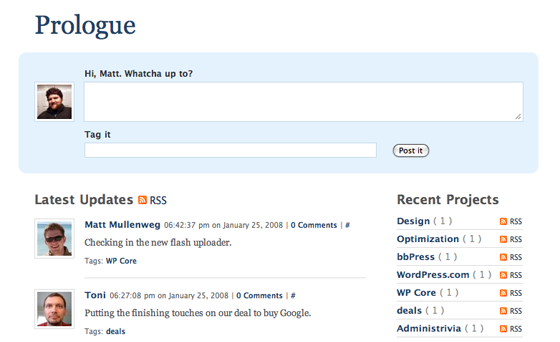
At our Automattic offsite last week, Joseph Scott and Matt Thomas created a very cool new WordPress theme that we plan to use in-house: Prologue.

Inspired by Twitter, you can see it in action in this live demo.  Prologue is also available as an open source theme to use with your self-hosted WordPress blog.

Full details here on the WordPress.com blog plus an early review on Mashable.

My gut tells me we’ll see some really interesting mods with this theme — can’t wait.

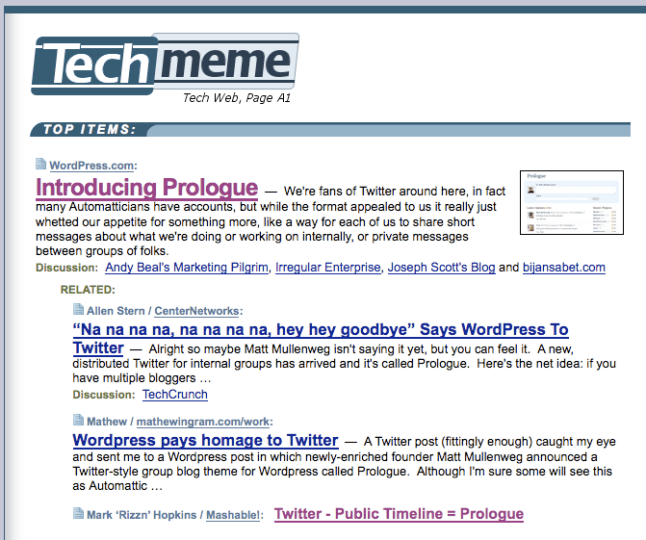
UPDATE: Lots of interest already — the announcement post just made the top of techmeme:
prologue

raanan.com has a new home: WordPress.com

This blog is blazing fast !

Why you ask ?  Because it’s now on the grid platform at WordPress.com 🙂    Up until now I’ve been running it on a server that I’ve had for a number of years.

The process of moving from a self hosted WordPres setup to WordPress.com was super simple.  For those who are interested, here was the proces:
Step 1) Exported the blog content from my old blog by clicking “export” in the WordPress dashboard
Step 2) Imported the XML file and the images from my old blog to WordPress.com with the 1-click importer in the WordPress.com dashboard. (image fetcher feature will be available soon on WordPress.com)
Step 3) Confirmed that everything was in place on the new blog — the importer brings everything in – posts, pages, images, youtube embeds and comments.
Step 4) Added the mapped domain option to my WordPress blog so that instead of raanan.wordpress.com, it becomes raanan.com
Step 5) Selected the blog.txt theme and applied it ( this theme will be released on WordPress.com soon ).
Step 6) Changed the name server settings at my registrar

And that was it.  What’s also nice is that I was able to get rid of the plugins I was using because that functionality is already bundled in with WordPress.com – including Akismet, Stats, and Gravatar.

Automattic news

Some very exciting news tonight – we announced a $29.5M series B round of funding.

Our CEO Toni Schneider summarizes it well:

Late last year we sat down to figure out how we’d like to expand our business in 2008 and beyond. Since things are working well, we didn’t want to make any major changes. However, we did set a couple of new goals. One was to put enough money in the bank to have financial security for years to come. Another was to invest more aggressively into our “other” products and services (other than WordPress) like Akismet, Gravatar, and bbPress. Today’s financing will help us achieve both of those goals.

Lots of coverage including: wsj , GigaOM, new york times, ReadWriteWeb, toni, and matt (sporting his new ma.tt domain !).

You can also track the discussion over on techmeme.

WordPress.com now offering 3 gigs of free space

We just announced a very big upgrade on WordPress.com

… everyone’s free upload space has been increased 60x from 50mb to 3,000mb. To get the same amount of space at our nearest competitor, Typepad, you’d pay at least $300 a year. Blogger only gives you 1GB. We’re doing the same thing for free.

Our hope is that much in the same way Gmail transformed the way people think about email, we’ll give people the freedom to blog rich media without having to worry about how many kilobytes are left in their upload space.

TechCrunch weighs in on the news & feel free to digg it 🙂

The Crunchies – watch it live

WordPress and Toni Schneider are nominated for awards at the Crunchies, which will be held tonight in San Francisco.

Seating opens at 6:45 pm and is first come first serve in the balcony. If you have a copy of our eticket, please bring it with you. If you do not have the eticket, no worries, we can check you in by name. Please arrive before 7:30. The ceremony will start at 7:30 and is expected to last until about 9:00 pm.

You can also watch it live here

Update: List of winners, including WordPress & Toni Schneider

MacWorld 2008 and an interesting stock trading tie-in promotion

Another exciting keynote from Steve Jobs today at MacWorld 2008 – in case you missed it you can catch-up on live.gizmodo.com. Just like the last MacWorld, Gizmodo’s live blog was hosted on WordPress.com as part of our VIP hosting program. ( you can read a “rating the livebloggers” review here)
update: watch the keynote & details on how other sites covering the event faired: Crunchgear, Engadget, and Twitter )

From a Mac product standpoint, I’m not totally convinced about the MacBook Air but definitely will check it out, and the Apple TV “take 2” is a huge improvement.

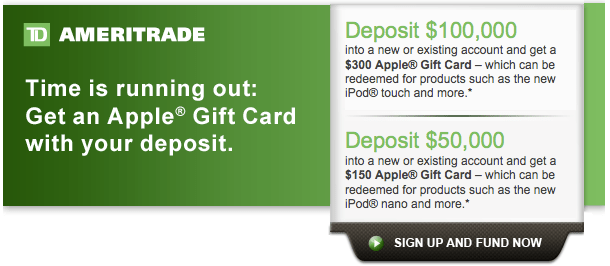
Shortly after the keynote this curious email offer arrived in my inbox:
trading.png

I definitely give them credit for linking their campaign to the millions of people out there with an urge to buy some new Apple gear !

The Great Sync on OS X: Google Calendar, Plaxo, address book, PocketMac and BlackBerry

While many people, including myself, can find plenty to gripe about with Outlook & MS Exchange , one thing that is rock solid is the over-the-air syncing with BlackBerry devices. Both email and calendar appointments sync fairly effortlessly and reliably.

In the non MS Exchange world syncing hasn’t been so easy, especially on the Mac side of the world. But with a bit of testing that I did recently with the google calendar mobile sync I think I’m finally in good shape.

Here is my setup.
for contacts: The Plaxo Mac OS X app keeps my OS X address book and plaxo.com in sync. My contacts don’t sync over the air to my BlackBerry curve, but when I plug my blackberry in to charge ( using a USB cable ) I run PocketMac which then syncs the contacts. I expect a plaxo blackberry sync client to come out in the future.
for email: The blackberry push email system does this all automatically, so no need to do anything extra.
for calendar: This was a serious pain point for me. I use Google Calendar and for the last few months I’ve been forced to basically use the WAP site for Google Calendar when I was on the go. It worked OK, but it meant no offline support. Now that Google Sync has been released my calendar updates in real time on my Blackberry — and works the other way — updating Google Calendar OTA if I make changes on my BlackBerry.

So there you have it. Definitely not as elegant as it could be, but finally everything is in sync !

OS X: Upgrading and Installing Leopard – pick the clean erase and install option

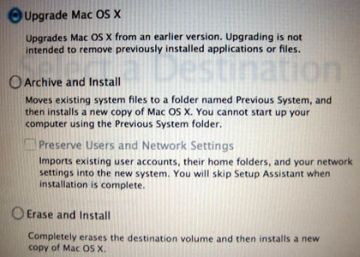
After waiting for Leopard to arrive I finally got my hands on it and went ahead with the installation. When you install your latest OS X you have a few choices:

leopardinstallloptions.jpg

In the past I’ve usually done a full HD backup, I then format the drive, and do a clean install of the new OS – using the upgrade as an excuse to clean house and get rid of all the crap that accumulates over time. But for some reason when I went through the process this time, the only option available to me was an “Upgrade”, which entails updating the OS as well as all applications and settings ( I later learned that perhaps having my external USB hard drive connected was the cause of that single option. )

So I rolled the dice and after doing the “upgrade” i noticed lots of sluggishness and beach balls a plenty !

So over the holidays I finally decided to do a full cloning of my hard drive using carbon clone ( which was simple and worked well ), and then proceeded with a clean install of Leopard aptly named “erase and install”.

Things are now snappy and that clean fresh OS feeling is quite minty ! You can also use the built in migration tools to transfer settings or just use the clone to copy over the “home” directory.